You’re loading the truck for a Saturday delivery. Someone yells across the warehouse: “Did we already load the gold chiavari chairs or are they still on the shelf?” Nobody’s sure. You check your notes, ask the crew, and waste 10 minutes tracking down chairs that were loaded 20 minutes ago.
These scenarios play out in event rental warehouses every single day. Managing inventory across multiple stages — pulling items, loading trucks, delivering to venues, picking up, and checking back in — creates dozens of opportunities for miscommunication and mistakes.
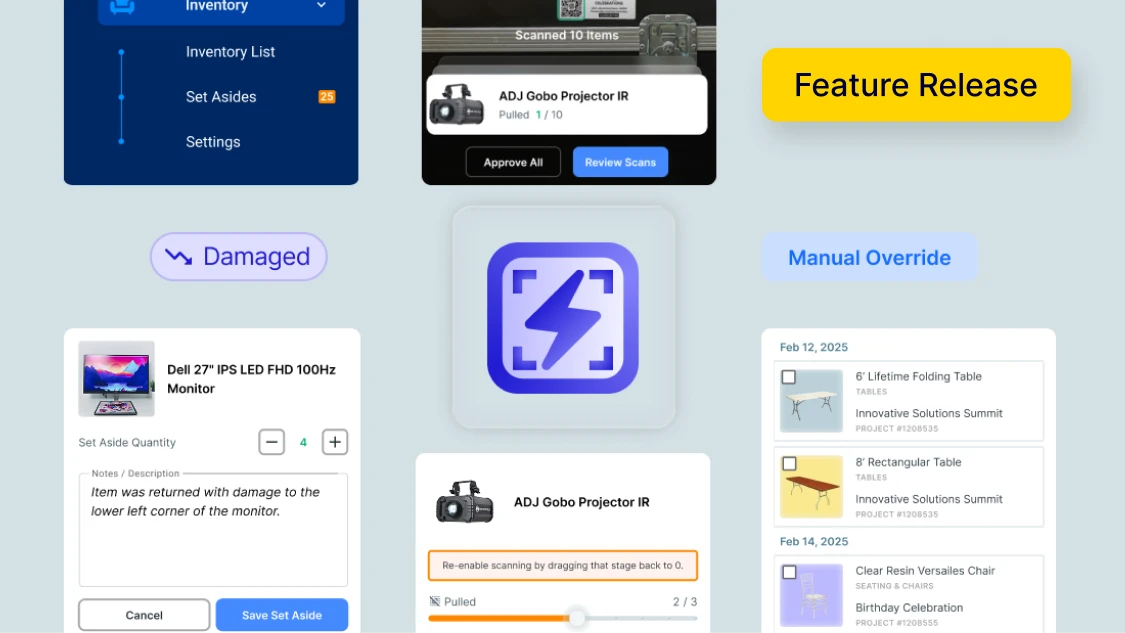
Advanced Inventory solves this by tracking items across every fulfillment stage with three powerful features: Barcoding with Rapid Scan, Auto Set Asides, and Manual Override.
Watch a quick video update, or keep reading for the full scoop:
Key Takeaways:
-
Scan items at every fulfillment stage with Rapid Scan barcoding.
Track what’s pulled, loaded, at the venue, and back in your warehouse — even in dim lighting or at odd angles.
-
Automatically catch missing and damaged items with Auto Set Asides.
Items not checked in by the end of the event get flagged automatically so nothing slips through.
-
Update inventory in bulk with Manual Override.
Skip individual scanning when you need speed — toggle fulfillment stages for entire batches at once.
-
Complete activity logging keeps everyone accountable.
See exactly who checked items in and out with timestamps for every action.
What's Included in Advanced Inventory?
Advanced Inventory builds on top of Goodshuffle Pro’s free Inventory ID feature. You already have the ability to generate barcodes and scan items to view availability and details. Advanced Inventory takes it further by adding speed, automation, and bulk actions that keep your entire team in sync.
Three key features:
- Barcoding with Rapid Scan: Scan items across every fulfillment stage in seconds
- Auto Set Asides: Automatically flag items not checked in by end of event
- Manual Override: Update fulfillment stages in bulk without individual scanning
Let’s break down how each feature works and why it matters for your warehouse operations.
Barcoding with Rapid Scan
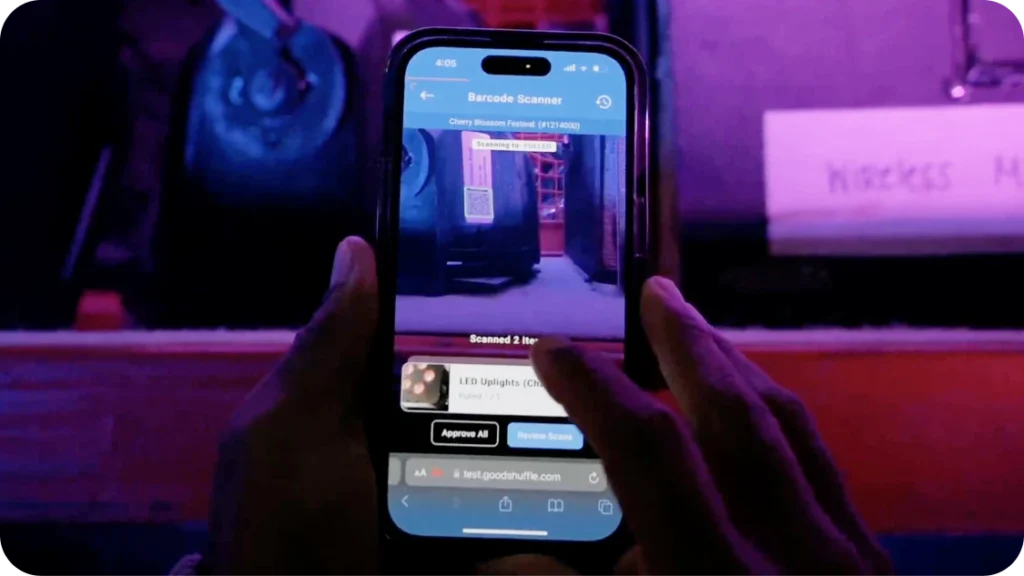
The heart of Advanced Inventory is Rapid Scan barcoding, designed for pure speed. You can fly through dozens of items in seconds — even at odd angles or in dim lighting.
How it works:
Scan items at every stage of fulfillment: pulling from shelves, loading onto trucks, checking in at the venue, loading back up after the event, and returning to the warehouse. Each scan updates the item’s status in real time.
What you can track:
- Pull items for specific events directly from your shelves
- Load inventory onto delivery vehicles
- Check items in at the venue to confirm everything arrived
- Load items back onto trucks during pickup
- Return items to warehouse inventory after the event
Why this matters:
Every action gets saved in an activity log with timestamps and user details. When someone asks “Who had those uplights last?” you have an answer immediately. No more finger pointing, no more guessing, no more miscommunication.
How to access:
Any project → Fulfillment tab → Scan barcode using your device camera → Select fulfillment action
Auto Set Asides
Let’s say you deliver 50 items to a venue on Saturday. Sunday night, your crew picks up and checks everything back in. By Monday morning, you notice two tablecloths never came back.
Were they damaged? Lost? Still at the venue? Without Auto Set Asides, you might not notice until you try to book them for another event — and by then, the trail is cold.
How it works:
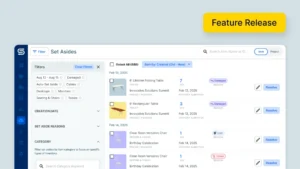
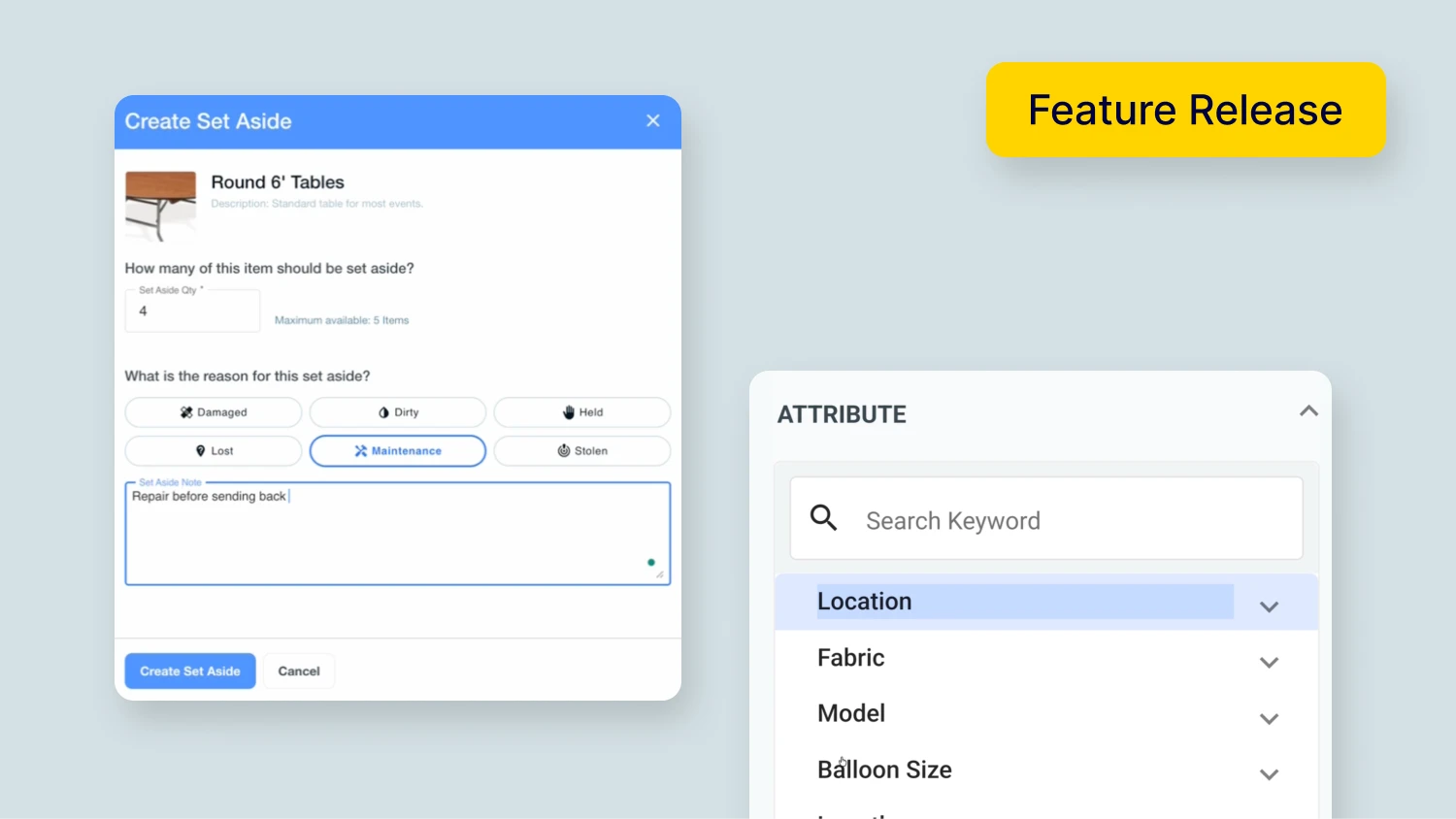
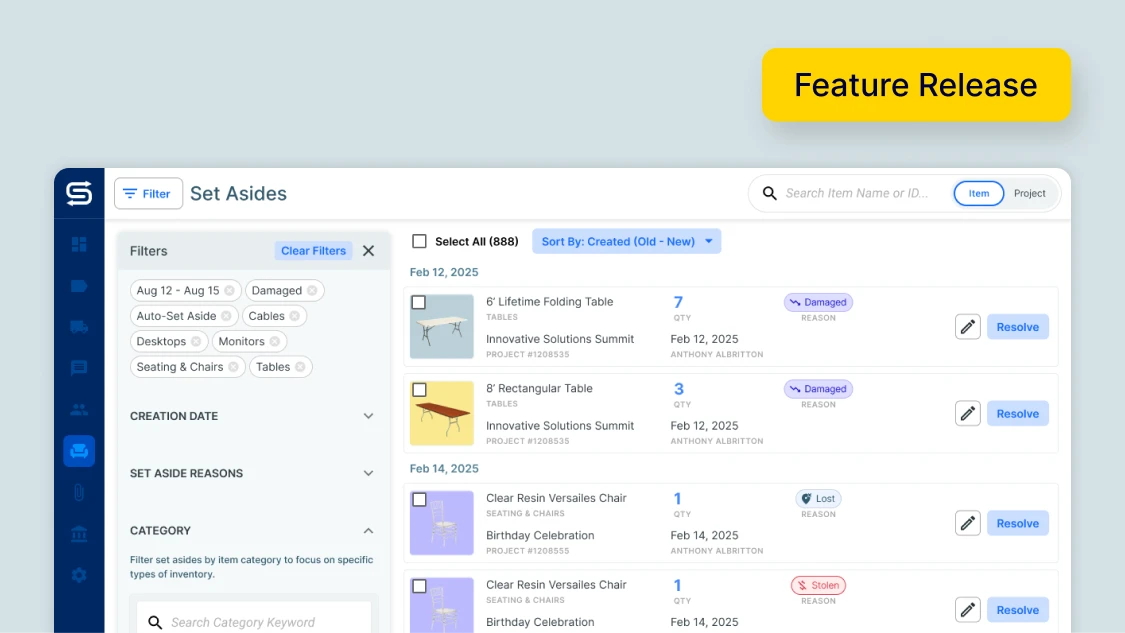
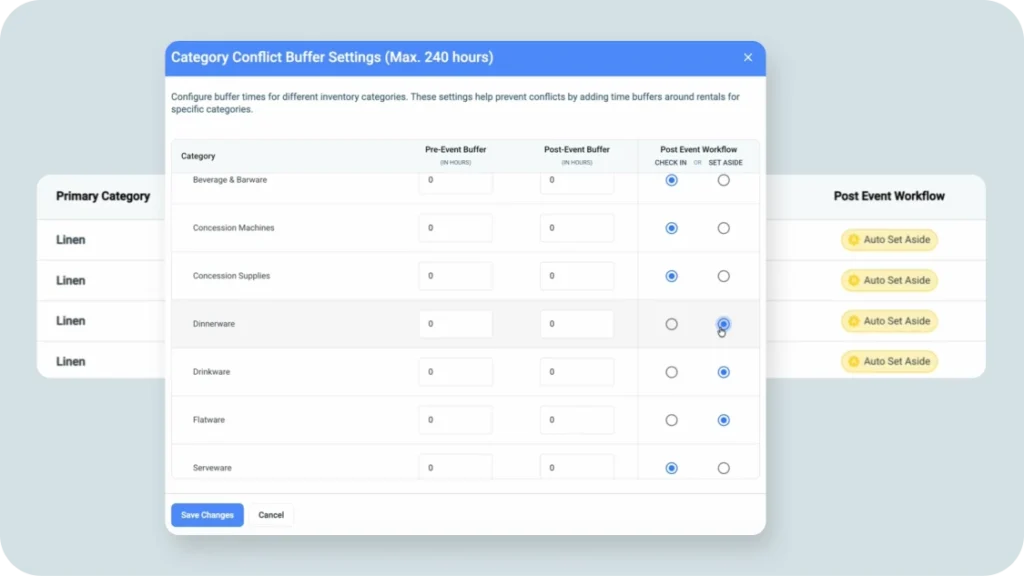
Set up Auto Set Asides by category. Any items in that category not checked in by the end of the event automatically get marked as set aside.
Why this matters:
Nothing slips through the cracks. Damaged items, missing items, items left behind at venues — they all get flagged automatically so you can follow up immediately while the event is still fresh in everyone’s mind.
You have complete control over inventory status — the system just catches issues for you.
Manual Override
You just got back from an event with 300 chairs. They all came back, they’re all in good condition, and you need to check them in so they’re available for next weekend’s bookings.
Scanning 300 individual chair barcodes would take forever. Manual override lets you skip the scanning and update fulfillment stages in bulk.
How it works:
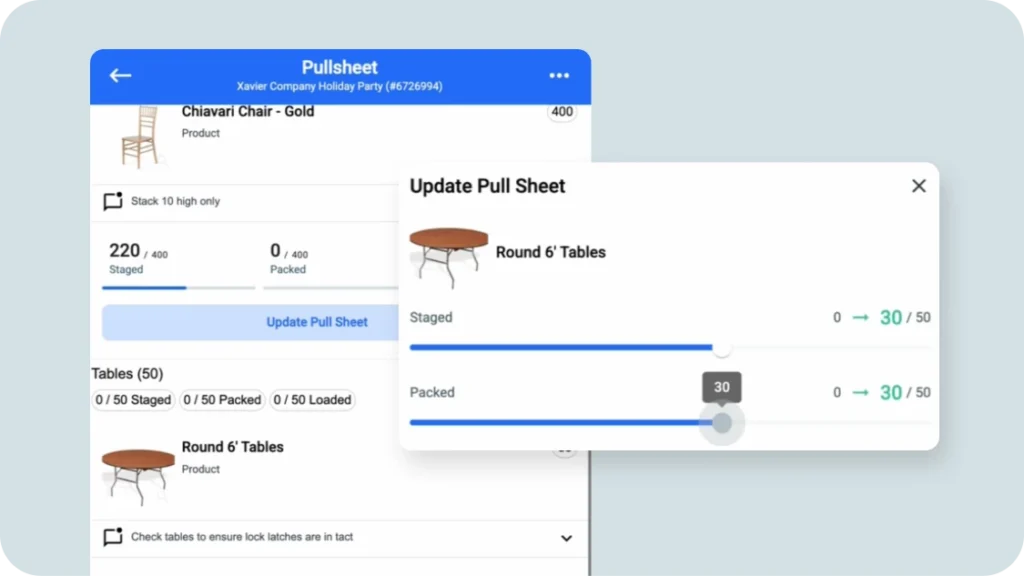
Toggle fulfillment stages for entire batches of inventory with one action. Select the items, choose the stage (loaded, at venue, returned to warehouse), and update everything at once.
When to use it:
- Large quantities of identical items that all have the same status
- Time-sensitive updates when scanning would slow you down
- Situations where individual scanning isn’t practical or necessary
Why this matters:
Nobody should have to scan 300 chairs manually. Manual Override gives you speed when you need it while still maintaining accurate inventory tracking. All bulk actions still get logged in your activity history with timestamps and user details.
How to access:
Any project → Fulfillment tab → Select multiple items → Choose “Manual Override” → Update stage in bulk
Ready to Transform Your Warehouse Operations?
Advanced Inventory gives you complete visibility and control across every stage of fulfillment. Track items from your shelves to the venue and back with speed and accuracy your team will actually use.
Already using Goodshuffle Pro? Activate your 30-day free trial in Account Settings, or reach out to your customer success manager to learn more.
Not yet using Goodshuffle Pro? Book a demo and we’ll show you exactly how Advanced Inventory keeps your entire team in sync.
FAQs
Absolutely. Every account gets a free 30-day trial. Activate it in your Account Settings and test it across your actual events before making a decision.
Yes, all Manual Override actions are logged with timestamps and user details just like individual scans. Your activity log stays complete regardless of which method you use.

Share On