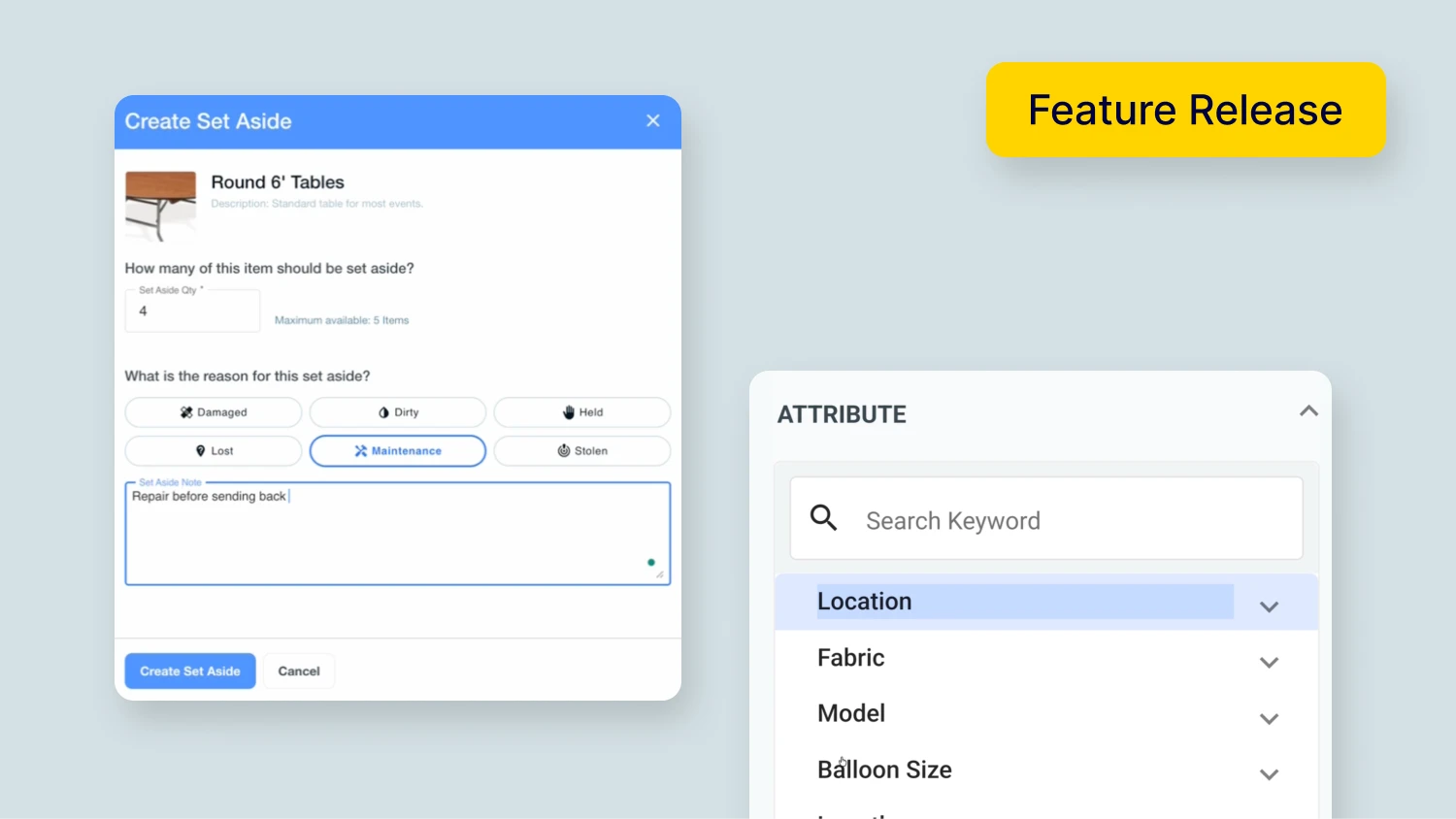
December brings updates that give you more control over your inventory and cut down on repetitive warehouse tasks.
These improvements focus on the daily operations that eat up your time: resolving inventory issues after events, organizing deliveries, and tracking items through every stage of fulfillment.
Watch a quick video update, or keep reading for the full scoop:
Key Takeaways:
-
Resolve multiple set asides at once.
No need to go one by one — select a batch of cleaned or repaired items and knock them out in seconds.
-
Filter set asides by size, color, or custom attributes.
Track down specific items faster when managing large inventory with detailed filtering.
-
Customize Dispatch to match how your team works.
Set default warehouse durations, stop times, and shift constraints that carry over to Auto Route.
-
Try Advanced Inventory free for 30 days.
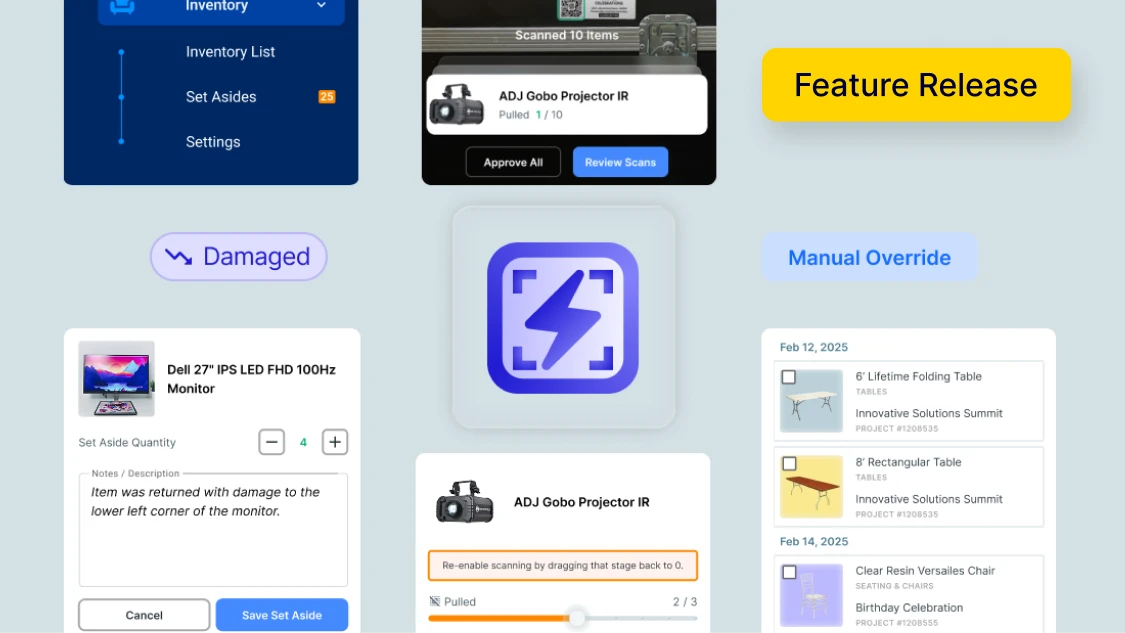
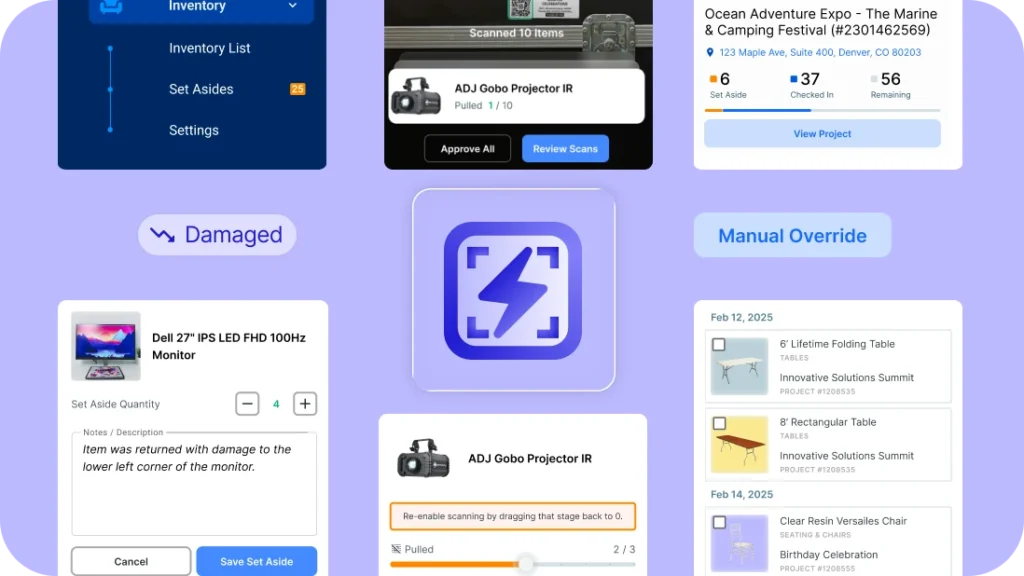
Track inventory across every fulfillment stage with Barcoding with Rapid Scan, Auto Set Asides, and Manual Override.
Trending Feature: Advanced Inventory
You’re loading out. Your crew is grabbing items, checking them off a paper list, and hoping nothing gets missed. Someone yells across the warehouse asking if the gold chiavari chairs are already loaded or still on the shelf. Another crew member is trying to figure out which damaged tablecloths from last weekend are ready to go back out.
Advanced Inventory takes warehouse operations to the next level by tracking inventory across every fulfillment stage.
What’s included:
- Barcoding with Rapid Scan: Scan items in and out faster than manual counting. Your team knows exactly what’s loaded, what’s at the venue, and what’s back in the warehouse.
- Auto Set Asides: Catch damaged or missing items automatically during check-in. No more discovering issues weeks later.
- Manual Override: Make inventory adjustments on the fly when you need to account for special situations.
Why this matters:
Loading and loadout has never been faster. Your entire team stays in sync — from the warehouse floor to the delivery truck to the venue. No more guessing, no more miscommunication, no more last-minute scrambles.
How to access:
Account Settings → Add-ons → Advanced Inventory → Start 30-day free trial
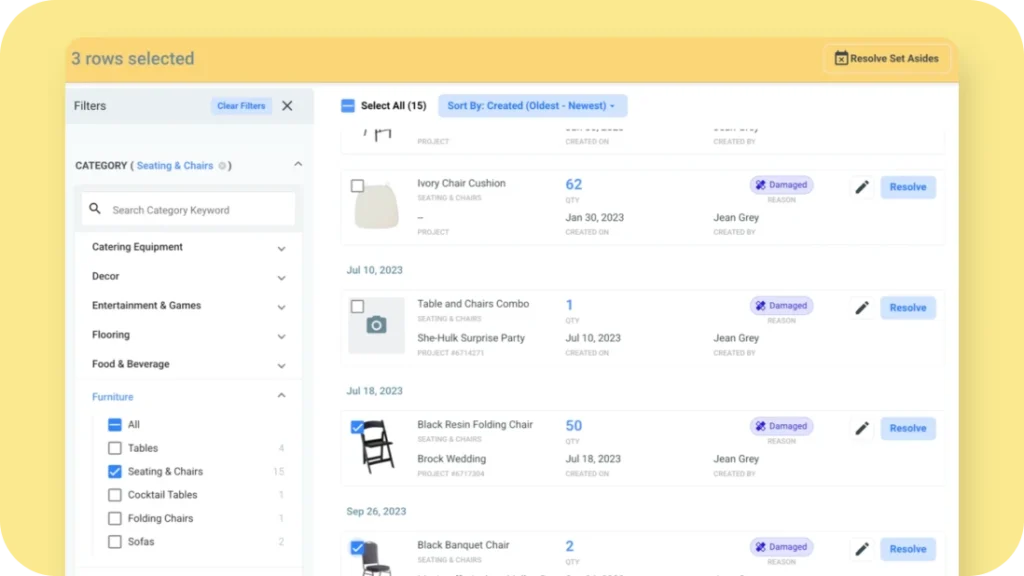
Bulk Resolve Set Asides
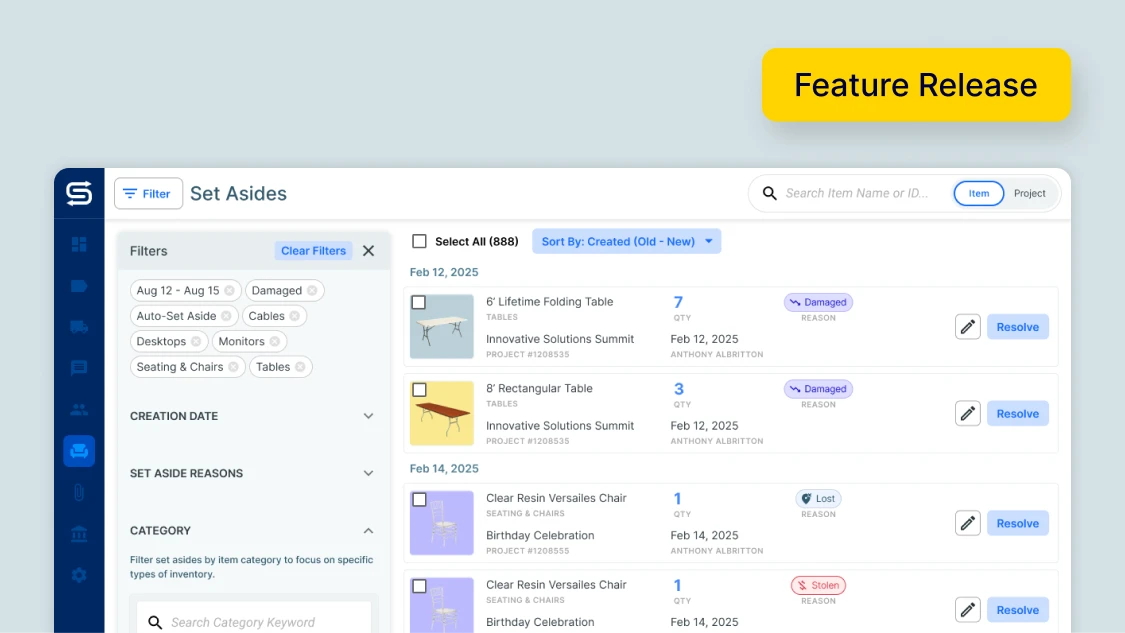
Last month we introduced Set Asides 2.0, and you’ve been using it to mark reasons for each set aside and manage them from one central dashboard. Now we’re making it even more powerful.
Let’s say you’re wrapping up a busy weekend you discover a batch of tablecloths that need cleaning. You mark them all as Set Asides with the reason “Dirty.” A few days later they’re back from the cleaners, ready to go.
Now you can select all those tablecloths and resolve them at once.
What you can do:
- Select multiple set asides from the resolution view
- Mark them all as resolved in one action
- Get back to work in seconds
Why this helps:
When you have a batch of items that’s been repaired, cleaned, or returned from a hold, you can knock them out all at once. It’s especially helpful during busy seasons when you’re processing inventory issues daily.
How to access:
Set Asides view → Select multiple items using checkboxes → Click “Resolve Selected”
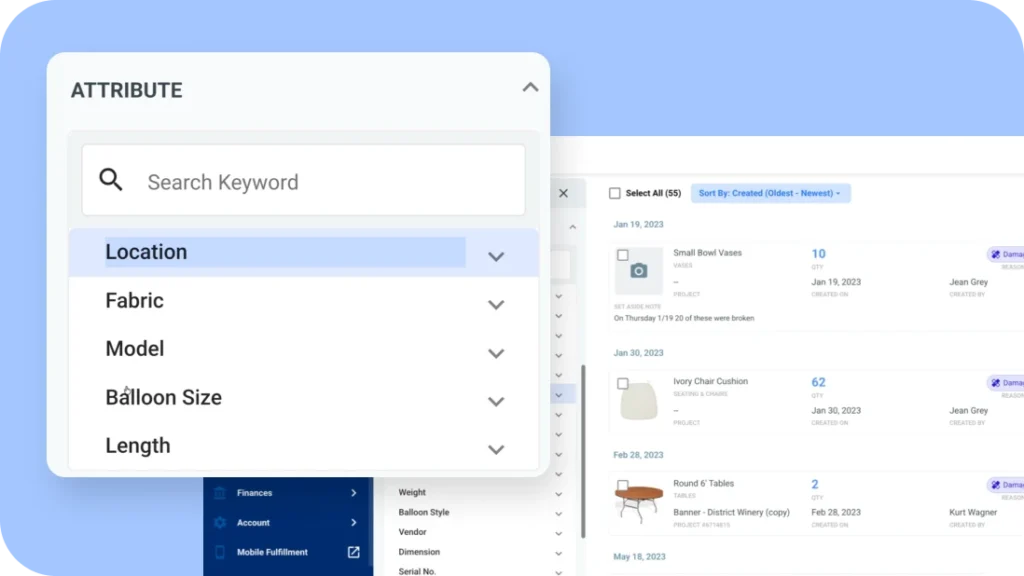
Filter Set Asides by Item Attributes
Let’s say you’ve got 70 items in your Set Asides view. Some are damaged, some are missing, some are out for repair. You need to find all the 8-foot banquet tables that are marked as “Maintenance” so you can send them to your repair vendor.
Scrolling through everything manually takes too long. Now you can filter by item attributes to track down exactly what you need.
What’s new:
- Filter by size, color, dimension, or any custom attributes you’ve created
- See filtered results instantly without clicking through individual items
Why this matters:
When you’re managing large inventory, being able to filter by specific attributes makes it way easier to organize repairs, track down missing items by type, or identify what needs attention first.
How to access:
Set Asides view → Filter dropdown → Select attribute filters
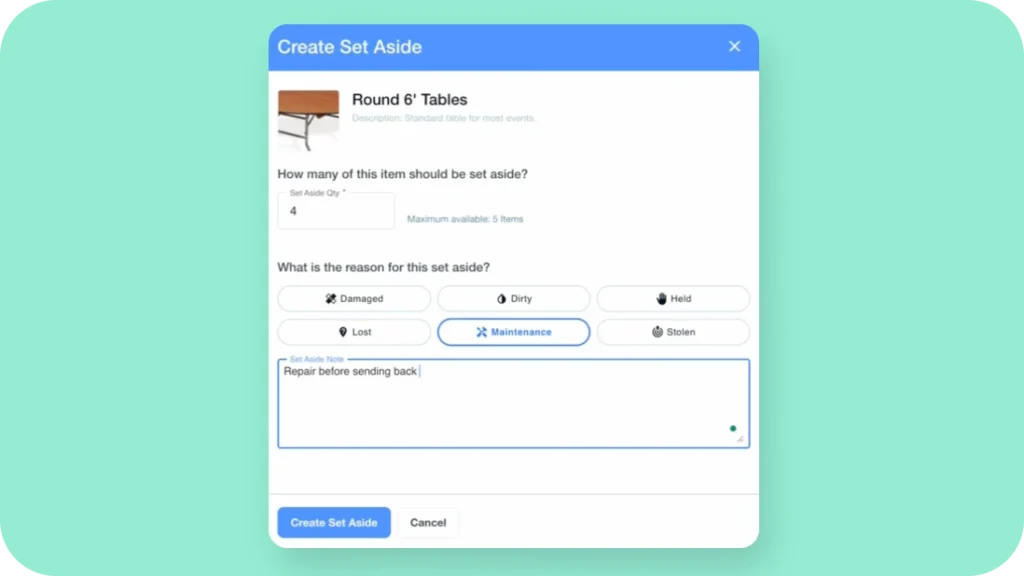
Expanded Set Aside Reasons
Your team needs to know not just that something is set aside, but why it’s set aside and what needs to happen next.
We’ve added three new set aside reasons to help keep everyone aligned.
New options:
- Maintenance: Item needs repair (cracked vase, broken chair leg, torn linen)
- Held: Item is temporarily reserved (holding for a VIP client, waiting on a decision, staging for a specific event)
- Dirty: Item needs cleaning before it goes back out
Why this helps:
Clear reasons mean your warehouse team knows what action to take. No more “What’s wrong with this?” or “Can I send this out?” conversations. The reason tells them exactly what needs attention.
How to access:
Any project → Fulfillment tab → Create Set Aside → Select reason from expanded dropdown
Customize Your Dispatch Settings
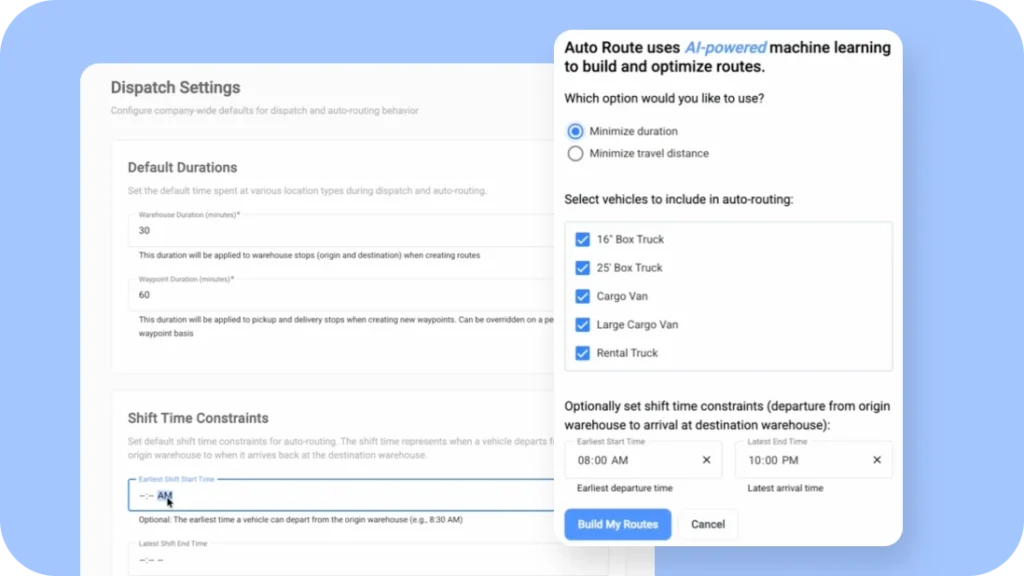
Every event rental business runs deliveries differently. Some companies need 30 minutes at the warehouse, others need an hour. Some crews start at 7 AM, others don’t roll out until 9 AM.
Now you can set default dispatch settings that match how your team actually works.
What you can customize:
- Default warehouse durations: Set how long your crew typically spends loading at the warehouse
- Default stop durations: Define standard delivery and pickup times
- Shift time constraints: Set the earliest start and latest end times for your routes
Why this matters:
When you’re building routes or using Auto Route, these settings carry over as defaults. You’re not constantly adjusting the same settings over and over for every route. And when you do need different timing for specific days, you can still override them on the fly.
How to access:
Dispatch → Dispatch Settings
Want to Try These Updates?
December’s updates are designed to give you more control over warehouse operations and save time on the tasks you repeat every single day. Bulk resolution, detailed filtering, smarter Set Aside tracking, and customizable Dispatch settings — all built to help you handle busy seasons with less stress.
Already using Goodshuffle Pro? These features are live in your account right now.
Not yet using Goodshuffle Pro? Book a demo and we’ll show you exactly how these features work for your business.
FAQs
Each set aside in your bulk selection resolves individually based on its specific reason and status. You’re simply saving time by processing multiple items at once instead of opening each one separately.
No, the settings only apply to new routes you create going forward. Existing routes keep their original settings, but you can manually adjust them anytime from the Route Details Panel.
Advanced Inventory includes three key features: Barcoding with Rapid Scan for faster loadout, Auto Set Asides that catch issues automatically, and Manual Override for inventory adjustments. It tracks inventory across every fulfillment stage and keeps your entire team in sync.

Share On