Less follow-up. More focus on events. April’s updates are built around one idea: the repetitive stuff should run itself so you can stay focused on the work that actually matters.
Watch a quick video walkthrough, or keep reading for the full breakdown:
Key Takeaways:
-
Set timed emails once and they send themselves.
Pre-delivery confirmations, post-event thank yous, and review requests all run in the background with no manual follow-up required.
-
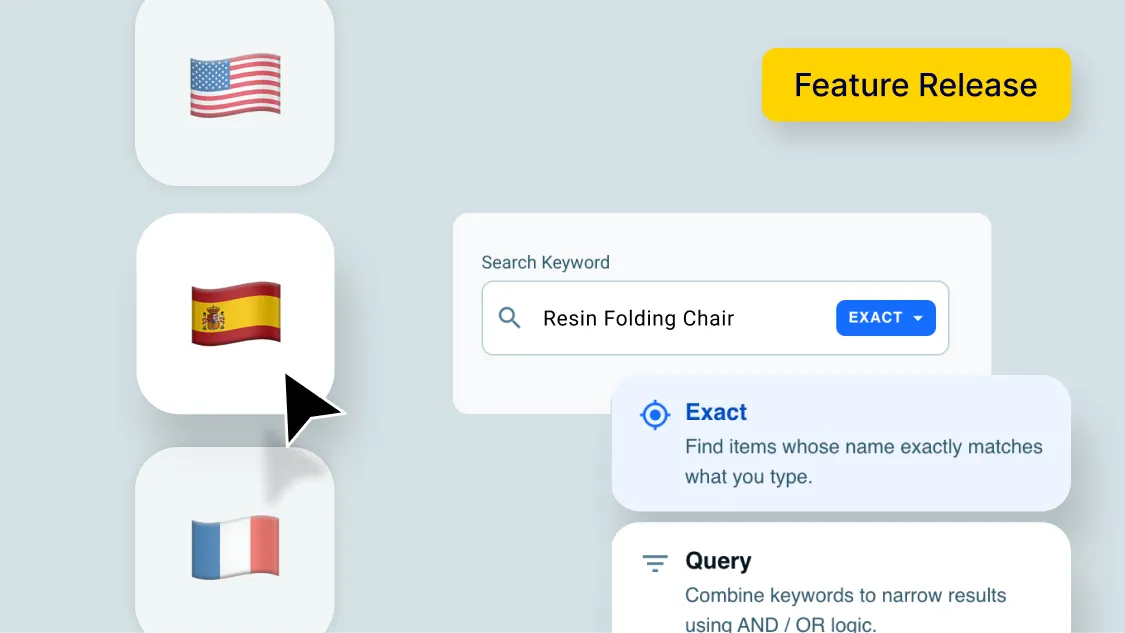
Search any inventory item across your entire project list instantly.
Every project that item is on surfaces immediately — useful for conflict-checking heading into busy season.
-
The full platform is now available in Spanish and French for your whole team.
That includes dashboards, contracts, and help center articles.
-
The modern project list becomes the default for all accounts on April 2nd.
If you’re still on the legacy view, the transition happens automatically.
Email automation is finally here
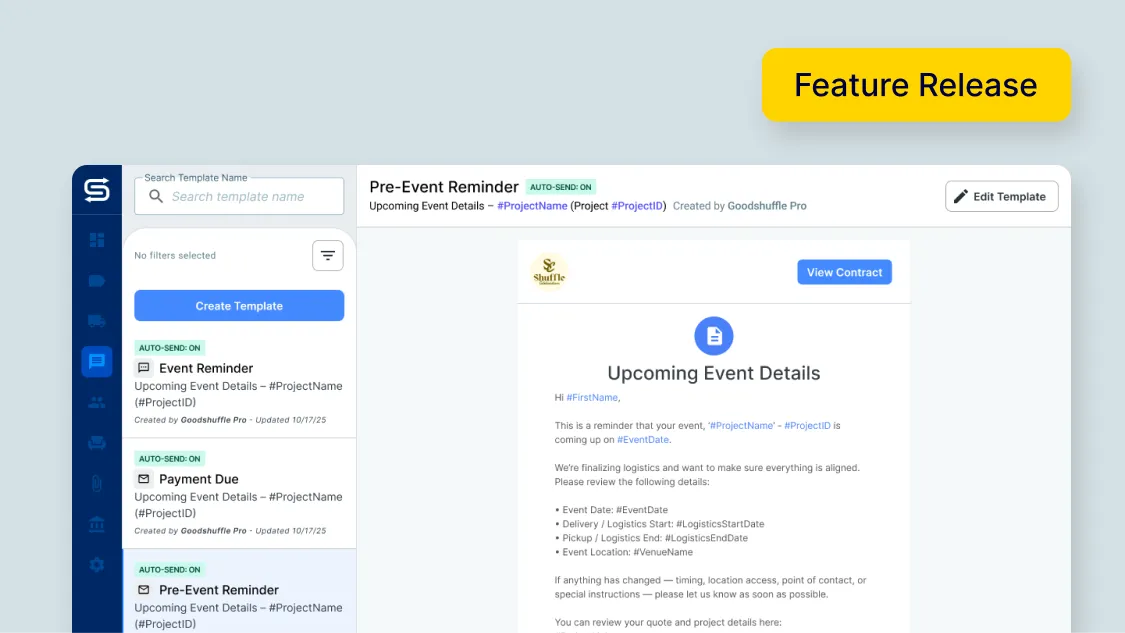
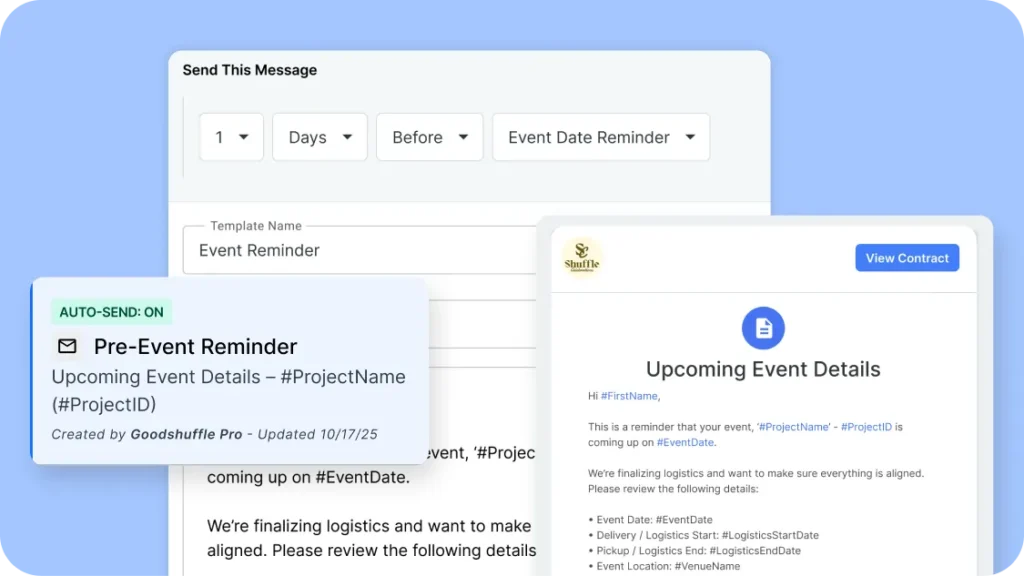
Timed Emails are live. You create your email template the same way you always have, but now you’ll see the option to set a date anchor — the trigger point for when the email should send. Two days before delivery. One day after the event. One week out for a review request. Whatever timing makes sense for your workflow.
Once it’s set, Goodshuffle Pro sends it automatically. No reminders, no manual send, no forgetting. Pre-delivery confirmations, post-event thank yous, and review requests can all run in the background while you’re focused on the actual work.
This is the first phase of email automation in Goodshuffle Pro — more is coming.
Why this matters: Most rental businesses lose time and bookings not because of bad service, but because follow-up falls through the cracks when things get busy. Timed emails close that gap without adding anything to your plate.
How to access: Open any email template → Set your date anchor → Save. The email fires automatically for every project that matches.
Search inventory across your project list
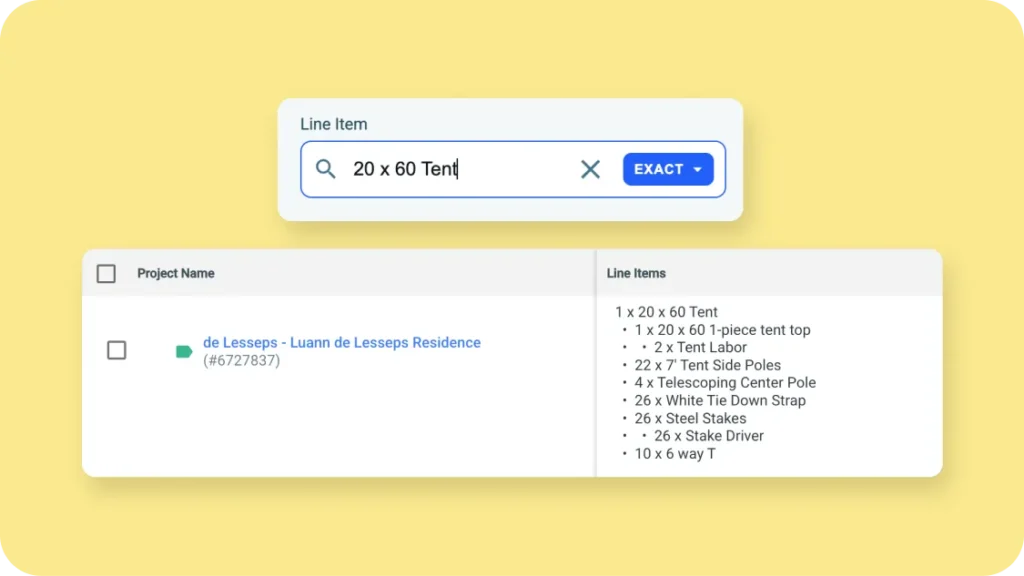
If you’ve ever needed to track down every project that has a specific item on it — a particular tent, a set of chairs, a specific AV piece — you can now do that directly from the project list. Search by inventory item and every matching project surfaces immediately.
This is especially useful heading into busy season, when knowing exactly where your inventory is committed can help you catch a conflict before it becomes a problem for a client.
How to access: Project list → Search bar → Type the inventory item name → All matching projects appear.
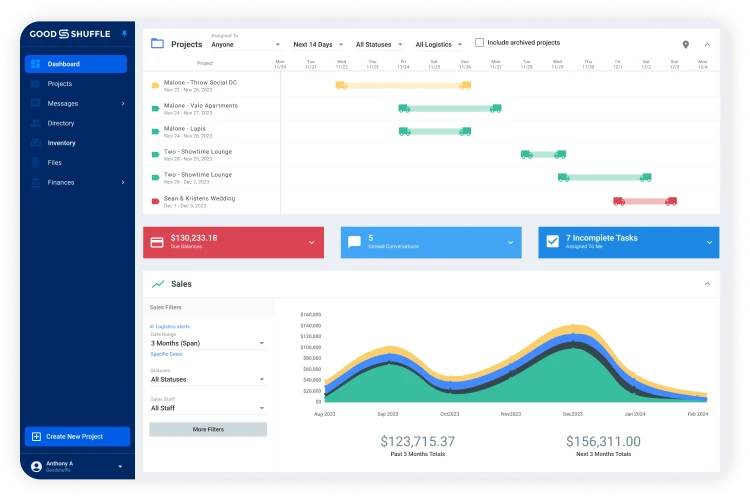
One more note: the modern project list is now the default for all accounts starting April 2nd. If you or anyone on your team is still on the legacy view, the transition happens automatically. The modern project list also includes Saved Views, so you can filter and organize projects exactly the way your team works.
Full platform now available in Spanish and French
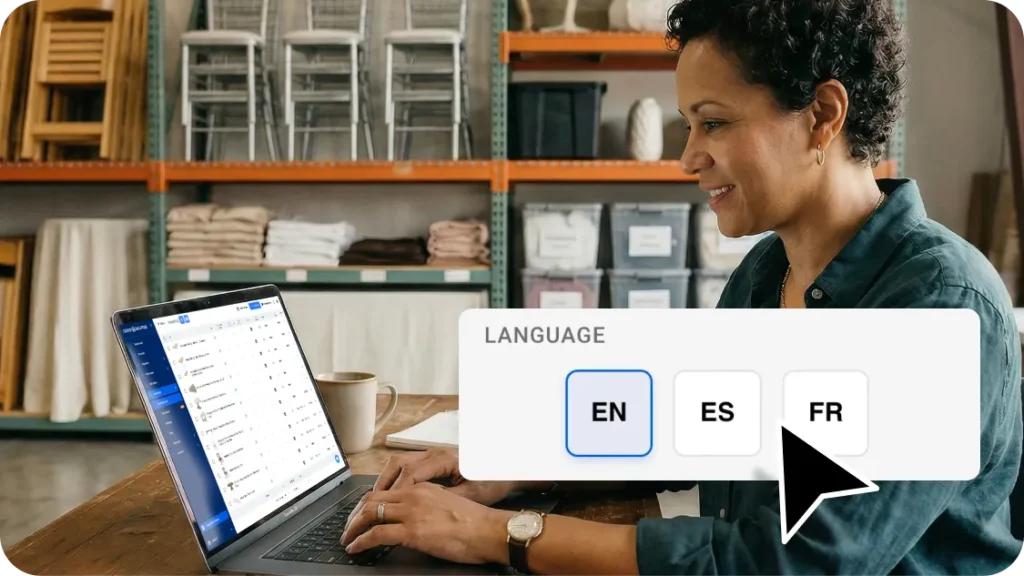
Multi-language support launched in late February and is now out of beta and available to every Goodshuffle Pro account. The entire platform — your dashboard, contracts, project details, and help center — can be translated into Spanish or French.
For teams with Spanish or French-speaking crew members, this means everyone can navigate the software in their preferred language. For client-facing documents, contracts can be set per client so they receive paperwork in the language that works for them.
How to access: Bottom-left corner of your account → Language settings → Select Spanish or French. Contracts can be configured per client.
A sneak peek at what's next
A few things in the works that we think you’ll like:
- Multi-brand support: For businesses running multiple brands or locations under one account — manage each with separate names, logos, colors, and client-facing documents.
- AI search: Inventory search that understands what you’re looking for even when your wording doesn’t exactly match the item name in your catalog.
April’s updates are about getting time back — whether that’s emails that send themselves, faster inventory lookups, or a platform your whole team can navigate comfortably. All of it is live in your account now.
Already using Goodshuffle Pro? Reach out to your customer success partner if you’d like a walkthrough of any of these features, or keep up to date on our newest features here. Not yet a customer? Book a demo to see everything in action.
FAQs
You create an email template as normal, then set a date anchor — a trigger point relative to the event date, like two days before delivery or one day after the event. Goodshuffle Pro sends the email automatically at the right time. You set it up once, and it fires on every matching project going forward.
Yes. From the project list, search by inventory item name and every project with that item surfaces immediately. This is especially helpful when you need to check where a piece of equipment is committed before accepting a new booking.
Yes. Contracts and other client-facing documents can be set to Spanish or French regardless of your account’s default language. You can configure this per client.
Nothing changes. Your projects, inventory, and client data all stay exactly as they are — only the view updates. The modern project list also includes Saved Views, which let you filter and organize projects by role or workflow.

Share On